
Game guide
Play Survival Angler on your phone or tablet
Survival Angler runs in the browser on phones and tablets as well as on PC — same lakes, same fish, same rooms. A one-minute setup gives you a full-screen game with no browser bars, and touch controls built for thumbs.
What you need
- A phone or tablet with a modern browser — Chrome on Android, Safari on iPhone and iPad.
- Landscape. Hold the device sideways; in portrait the game asks you to turn it.
- Wi-Fi for the first visit. The first load is about 40 MB. After that most of the game is cached and starts much faster.
- Some free memory. On devices that report less than 3 GB of memory the game warns that it may run slowly. You can still play — close other apps first for the best result.
The game picks a dedicated Mobile graphics level on phones and tablets and caps the frame rate at 30 frames per second, so the device stays cooler and the battery lasts longer.
Play full screen
Browser bars take up a lot of a phone screen. There are two ways to get rid of them.
Android (Chrome)
- Open survivalangler.com/play/. On the first tap the game switches to full screen by itself. If you leave full screen, open ☰ → Full screen to go back.
- To get an app icon, open ☰ → Install app in the game (it appears when Chrome allows it), or use Chrome's ⋮ menu → Add to Home screen / Install app.
- Open Survival Angler from the new icon. It starts full screen, in landscape, with no browser bars.
iPhone and iPad (Safari)
On iPhone, Safari does not let a web page hide its address bar and toolbar, so the home-screen icon is the way to play full screen:
- Open survivalangler.com/play/ in Safari.
- Tap Share ⬆ → Add to Home Screen, then Add.
- Open Survival Angler from the new icon on your home screen.
The game reminds you of this once when you first play in Safari. On iPad, tapping the game also switches it to full screen.
Keep your progress when you switch. On iPhone and iPad the home-screen icon keeps its own storage, separate from Safari. A guest game started in a Safari tab will not appear in the home-screen app. Sign in with Google and the same money, gear and catches follow you to the icon, to another device and to your PC.
Touch controls
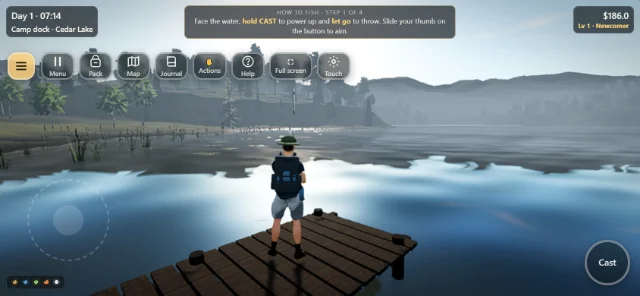
The first time you play, a short touch guide shows where everything is. The screen stays clear: when you are just standing there you see only ☰ and the big action button, and other buttons appear when you need them.
| Touch | What it does |
|---|---|
| Drag on the lower left | A joystick appears under your thumb. Push gently to walk, past the edge to run. In a vehicle: up to accelerate, sideways to steer. |
| Swipe anywhere else | Look around. Pinch to zoom the camera in or out. |
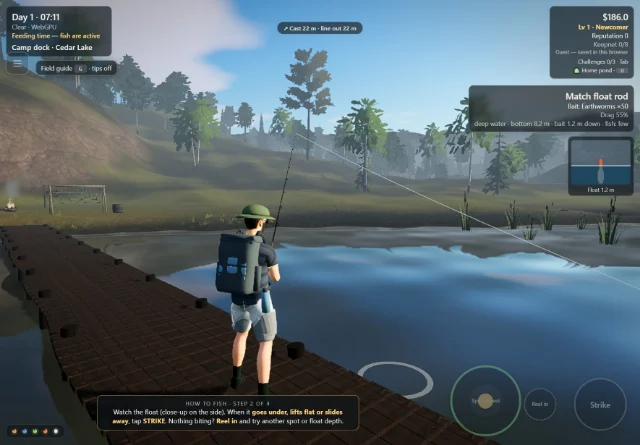
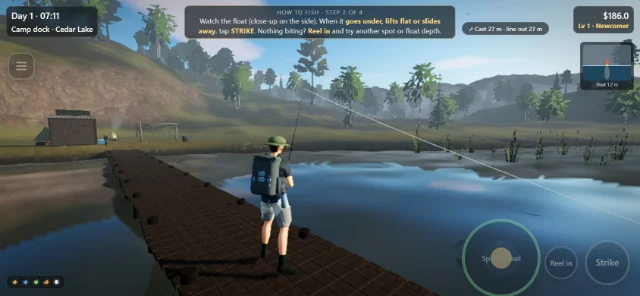
| Big button, bottom right | Hold to power up, let go to cast. Slide your thumb on it while holding to aim. When a fish bites it flashes and vibrates — tap Strike, or tap and flick your thumb up for a firm strike. |
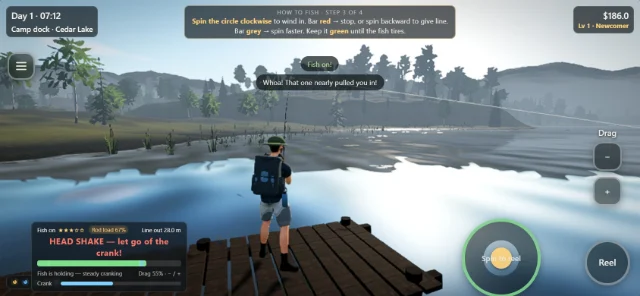
| Reel circle ("Spin to reel") | Spin your thumb clockwise to wind in — faster spin, faster reel. Spin backwards to give line. The ring turns from green to yellow to red with the line tension; red plus a buzz means stop. |
| − / + | Set the drag while you fight a fish. |
| Small round buttons | Appear by themselves for what you can do right now — interact, change bait, float shallower or deeper and more. Hold one to open its wheel, slide to a choice and let go. |
| Fish in hand | Keep, Release and Photo buttons along the bottom. |
| ☰ | Menu, Pack, Map, Journal, Actions, Help, Full screen, Install app (Android) and Touch settings. |
Actions gathers everything that has a key on PC but no button of its own: your angler screen, the home pond, crouch and sit, the headlamp, the fish finder, the rod and bait wheel, float depth, chat and fishing tips.
Make the controls yours
Open ☰ → Touch to change:
- Camera sensitivity.
- Button size — small, medium or large.
- Button opacity.
- Which side the action buttons are on — switch for left-handed play; the joystick and menu move to the other side.
- Vibration on or off. (iPhone browsers do not support vibration for web pages.)
- Show the touch guide again.
The settings are saved on the device.
Tips for smooth play
- Close other apps before a long session, especially on older phones.
- Your game saves itself when you switch apps or lock the screen, because phones often close background tabs.
- Sign in with Google if you want to carry on later on another device or on your PC.
- Fish with friends on PC. Phone and PC players share the same rooms — send your invite link and fish side by side.
- Laptop with a touch screen? Touch the screen and the touch buttons appear; use the keyboard or mouse again and they hide.
New to the game? Read how to play for your first hour on the water, and how to read a fishing float to start striking at the right moment.
Frequently asked questions
Is the phone version a different game?
No. It is the same game at the same address, with touch controls instead of keyboard and mouse. You fish the same maps and can join the same rooms as players on PC.
Do I have to install anything?
No. The game runs in your browser. Adding it to your home screen is optional — it simply opens the game full screen from an icon, without the browser's address bar.
Why does the game ask me to turn my phone?
Survival Angler is played in landscape. Hold your phone sideways and the game continues.
Will my progress carry over between phone and PC?
Yes, if you sign in with Google. Guest progress is kept only in the browser you played in.